Docker Based Linux Desktop Experience
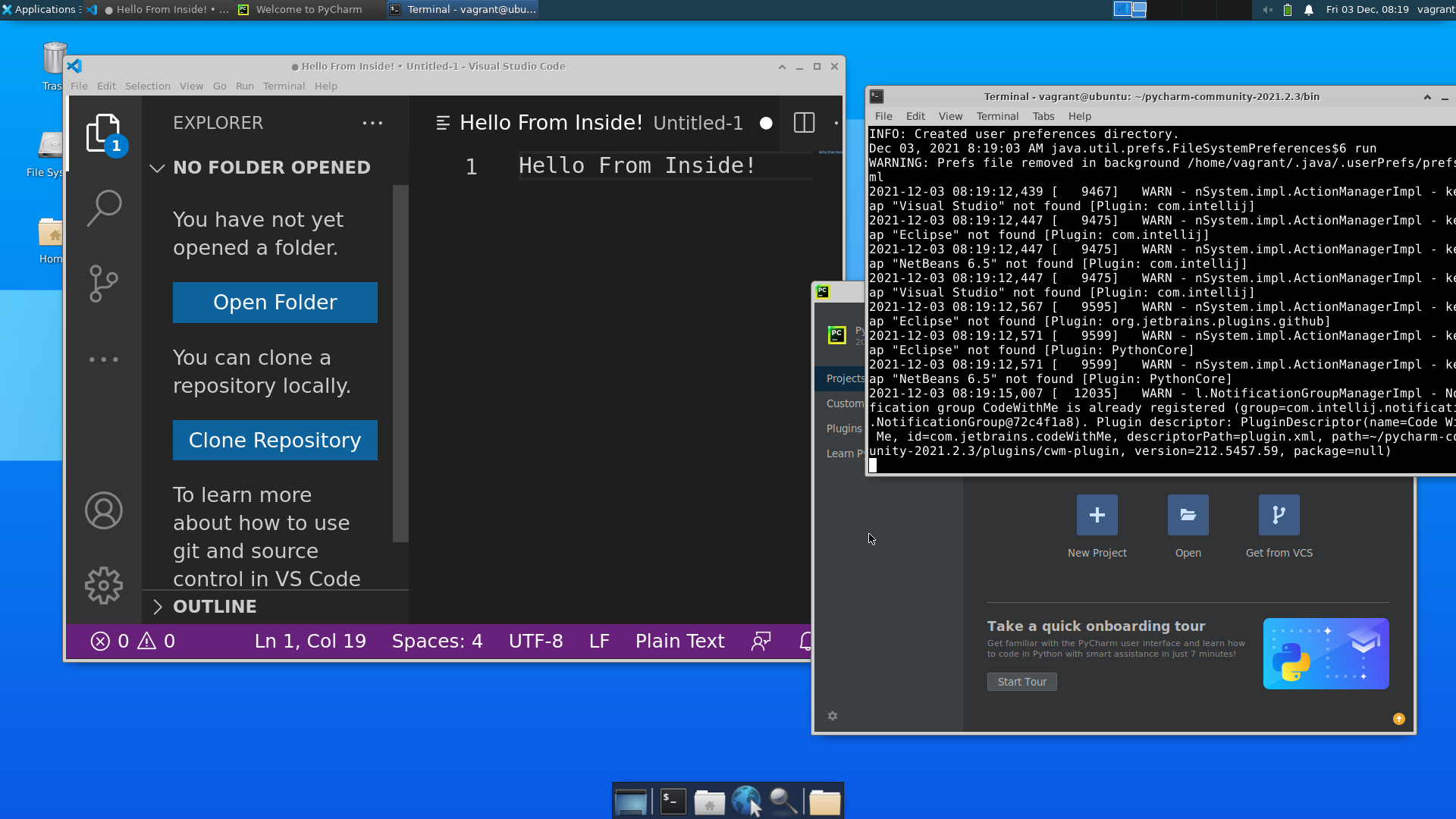
VM-like experience backed by Docker and Vagrant with full Desktop GUI and common applications (VS Code, git, etc) pre-installed.
Common issues
In the Vagrantfile, there are two options: ‘-v’, ‘/etc/vulkan/icd.d/nvidia_icd.json:/etc/vulkan/icd.d/nvidia_icd.json’, ‘-v’, ‘/etc/vulkan/implicit_layer.d/nvidia_layers.json:/etc/vulkan/implicit_layer.d/nvidia_layers.json’,
make sure to check “nvidia_icd.json” and “nvidia_layers.json“‘s location on the host machine
this code base only tested with ubuntu 20.04 and Nvdia driver “525.60.11” . Other versions of nvidia driver might cause issues. Other versions of ubuntu might be working but need some tweaking. We highly recommend using the recomended driver version, as we are not able to get the code to work with certain versions of nvidia driver.
Why Use It
Lightweight - Backed by Docker
Enjoy all benefits of Docker
Instant Spin Up/Destroy VMs
Cross Platform
Windows (not tested)
Linux
Highly Customizable
Docker-IN-Docker preconfigured
You can use Docker right out of the box inside the VM
Pre-Installed Applications in VM
Below is the list of pre-installed applications. You may easily customize as needed by modifying Dockerfile!
VS Code
Python3
Git
Docker
… and some others
Requirements
Linux
Only Ubuntu 20.04 has been tested.
Docker
Vagrant
freerdp2-x11
$ sudo apt update
$ sudo apt install -y docker.io vagrant freerdp2-x11
Quick Start
All the vagrant commands below are run in the host.
Create a folder for you VM to use. Each VM should have its own folder.
Copy the
Vagrantfileinto the folder you created.In the folder, run
vagrant upto spin up the VM.Run
vagrant sshto get an ssh shell into the VM. Or runvagrant rdp -- '-f'to use GUI.If asked, the username and password are both
vagrant.
Useful Commands
vagrant upSpins up the VM if not already
Behind the scene it’s
docker run ....
If already spun up, then this boots up the VM instead
Behind the scene it’s
docker start ....
vagrant haltShutdown the VM.
Behind the scene it’s
docker stop ....
vagrant destroyDestroys the VM.
Behind the scene it’s
docker rm -f ....
vagrant sshGet an ssh connection into the VM
vagrant rdp -- '-f'Get an RDP connection (GUI) into the VM
'-f'for fullscreen
FAQ
I get some network error when running vagrant up
After running vagrant up to spin up the VM, you may see the following error:
A Docker command executed by Vagrant didn't complete successfully!
The command run along with the output from the command is shown
below.

Command: ["docker", "network", "connect", "vagrant_network", "6938a279a0e2a1a8193d10e773ffd6e810e675fe0ec467b3f0ca954907a8f330", {:notify=>[:stdout, :stderr]}]

Stderr: Error response from daemon: failed to add interface veth7b11df7 to sandbox: error setting interface "veth7b11df7" IP to 172.18.0.2/16: cannot program address 172.18.0.2/16 in sandbox interface because it conflicts with existing route {Ifindex: 4 Dst: 172.18.0.0/16 Src: 172.18.0.1 Gw: <nil> Flags: [] Table: 254}
In this case, please run a vagrant destroy and then followed by another vagrant up. This should solve the problem.
I need to open up some ports in the VM so that the host can access them
You may be running a Flask server inside the VM, and you want the host (or even another computer on the public Internet) to have access to the Flask server.
By default, five user ports (11111-11115) in the VM have been exposed. When you spins up the VM, Vagrant does something like docker run -p 11111-11115:11111-11115 ... for you.
Usually the host can access these ports by, for example, localhost:11111 or <host_ip>:11111.
However, to avoid port collision on the host (for example, another application on the host may be already using port 11111), Vagrant might alter the port mapping. To view the actual port mapping, you need to run docker ps to see which host port is mapped to which VM port.
For example, the below shell snippet shows that the tempvm has port 11112 mapped to the host port 2202.
PS C:\Users\plum\tempvm> docker ps
CONTAINER ID   IMAGE                COMMAND                  CREATED         STATUS         PORTS

          NAMES
1c4d7f1c9735   erdnase/vm:generic   "/bin/sh -c 'service…"   2 minutes ago   Up 2 minutes   1-21/tcp, 23-3388/tcp, 3390-11110/tcp, 11116-65535/tcp, 127.0.0.1:2206->22/tcp, 0.0.0.0:2200->3389/tcp, 0.0.0.0:2201->11111/tcp, 0.0.0.0:2202->11112/tcp, 0.0.0.0:2203->11113/tcp, 0.0.0.0:2204->11114/tcp, 0.0.0.0:2205->11115/tcp   tempvm_default_1638525110
a2fe8dcb3469   erdnase/vm:generic   "/bin/sh -c 'service…"   2 hours ago     Up 2 hours     1-21/tcp, 23-3388/tcp, 3390-11110/tcp, 11116-65535/tcp, 0.0.0.0:11111-11115->11111-11115/tcp, 127.0.0.1:2222->22/tcp, 0.0.0.0:33890->3389/tcp
          ubuntu-vm_default_1638519316
Please try to design your server/application to use one of these five exposed ports.
If you absolutely need more ports or need more port flexibility, you have four options.
If you haven’t spun up the VM, you may modify the
Vagrantfileto customize the port mapping to suit you need.If you have already spun up the VM, you may modify the
hostconfig.jsonfile associated with your VM in the host. See this link for detail.Use ngrok to expose ports on the fly. An
ngrokexecutable has been already placed in the/home/vagrantdirectory in the VM.(for Linux host only) If you host is Linux, you are in luck. Inside VM, execute
ifconfigand get the VM’seth0ip address in theinetfield. You can use this ip address in the host with any port without any additional setup.
GUI is behaving strangely
Please strike CTRL key several times. This should solve the problem.
How to get out of full-screen RDP
Linux Host
Hit CTRL-ALT-ENTER to toggle full screen
My VM is hosted on a remote server. How do I access the GUI?
Run docker ps to see which port on the host is mapped to the 3389 port in the VM. Typically it’s 33890.
Open your RDP client, and connect to <host_ip>:33890 assuming 33890 on the host is mapped to 3389 in the VM.
Linux OS Host
Run
vagrant sshto get ssh access to VM.Run any GUI app. For example,
xclock. You should see an app popping up in the host’s Desktop environment.If not working, try running
xhost +on the host to disable access control. Please fully understand the security implications.